
In order to use the CEMEX Connect portal, a few requirements must be met to correctly display and work with the application.
Requirements
Please take a look at the following system and browser requirements:
- Screen Resolution
- The CEMEX Connect portal is best viewed at a screen resolution of 1024 X 768 (high-resolution) or higher.
- Pop Ups
- For the best performance, all pop-up blockers should be deactivated.
- Cookies
- Cookies must be enabled in your browser, to save your preferences on some tabs.
Supported Browsers
The following browsers are supported for Microsoft Windows platforms only:
- Google Chrome
- Version 30 and up. Recommended.
- Firefox
- Version 17 and up.
- Internet Explorer
- Version 9 and up.
The following browser is only supported for MAC OS X.
- Safari
- Version 5 and up.
Deleting Cache and Cookies
Please follow the steps below to delete your browsers cache, temporary data and cookies. This is sometimes needed to get the latest version of the application and ensure the correct behavior of the application. We strongly suggest that prior to reporting a problem with the application, you delete your browser's cache and and then try to perform your tasks normally and see if the problem persists.
- Deleting Cache & Cookies in Google Chrome
1. Open Google Chrome- 2. Click the "Menu" button
 in the upper-right corner.
 - 3. Click on "History" and then click on "Clear Browsing Data".

4. A new window opens up, make sure you select the options as shown on the image below and then click on "Clear Browsing Data".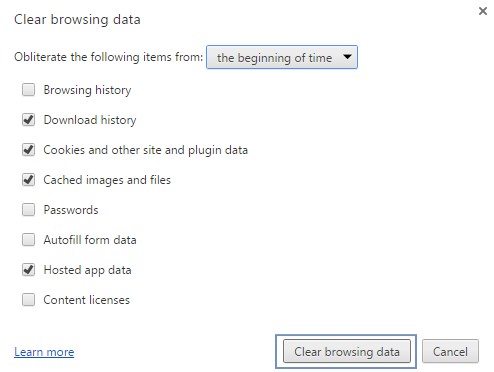
- Deleting Cache & Cookies in Firefox
1. Open Firefox- 2. Click the "Menu" button
 in the upper-right corner
 - 3. Click on the "Options" button.

4. A new window opens up, go to the Advanced -> Network tab and make sure you select the options as shown on the image below and then click on "Clear Now" then click "OK".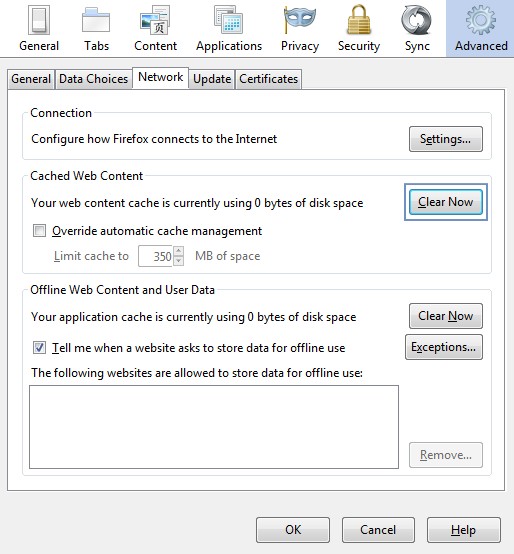
Enabling TLS 1.2 Encryption for Smart Pay and Cash Sales
Pay Connexion will only support TLS v1.2 encryption protocol through its public website and administration channel.
- Enabling TLS 1.2 in IE 8
1. Open Internet Explorer 8- 2. Please go to Main menu, Tools > Internet Options
- 3. Go to Advanced Tab, Scroll down to Security view and select check box Use TLS 1.2 option then click OK.
